How to install WordPress 3.3.1 on Ubuntu
This is a full article on how to install WordPress on Ubuntu, that means you can use this guide even if you have a clean installation of Ubuntu, and I will try to keep it as simple as I can.
What you will need in order to install WordPress.
First of all you will need a LAMP Server(more information can be found here).
Lets set up our LAMP Server.
1. You have to install a Linux system(you can choose whatever you want. A guide on how to install Ubuntu can be found here).It doesn’t really matter if you choose a desktop or server edition but if you are planning to publish your WordPress website I strongly recommend to use a server edition of Ubuntu for example.
2. You will need Apache (more information can be found here)
3. You will need MySQL (more information can be found here)
4. You will need PhP (more information can be found here)
5. And last but not least you will need to download WordPress from official site.
Let’s go to the next Part and Install Lamp

How to install WordPress 3.3 on Ubuntu Part 2:
tasksel lamp
At this point I assume that you already have a Linux system running if you don’t please to do that first(info). For this tutorial I use Ubuntu 11.10 but it will work with newer or older versions of Ubuntu too.
In order to set up our lamp Server I follow the easiest way and i will use tasksel.
First of all you have to install tasksel. Open a terminal and type:
sudo apt-get update
sudo apt-get install tasksel
Ok now you have installed tasksel and you can access it by typing:
sudo tasksel
A screen like the following will appear :
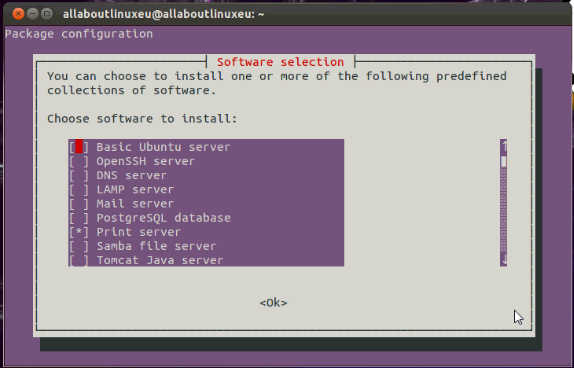
Navigate with up and down arrow keys and select with spacebar. The mouse is not working here. Go on and select “LAMP Server” then click “ok”. You are almost done. After a while, another screen will appear asking you for a password. This is the password for root user of MySQL. Use something that you can remember because you will need it if you want to have access to MySQL.
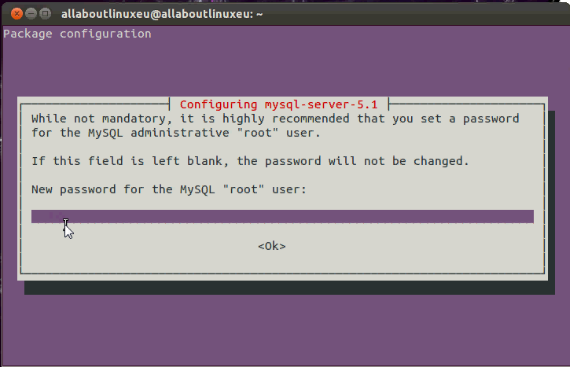
Retype your password and then you are done!
Congratulation! Now you have your own LAMP server
Let’s go to the next Part

How to install WordPress 3.3 on Ubuntu Part 3:
PhpMyAdmin
In this step we will install PhpMyAdmin(more info can be found here). This is not a mandatory step and you can skip it if you know how to use MySQL commands but it will make life easier so I strongly recommend to proceed.
In order to install PhpMyAdmin you have to install first Mysql, PHP and Apache (so you have to complete Step1 first).
Open your terminal and type the following:
$>sudo apt-get install phpmyadmin
A screen like the following will appear and now you have to choose the web server that should be automatically configured to run PhpMyAdmin(you can navigate by using the “arrow keys” and you can select by using the “spacebar key”). It is recommended to use the apache server.
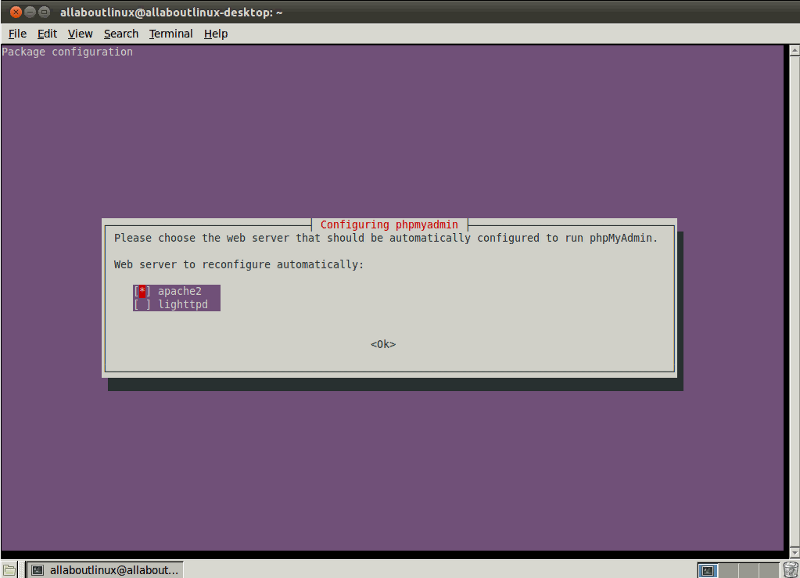
After that the a screen like the following will ask if you want to let the installation configure the database for PhpMyAdmin for you. It is recomended to click “YES” on that.
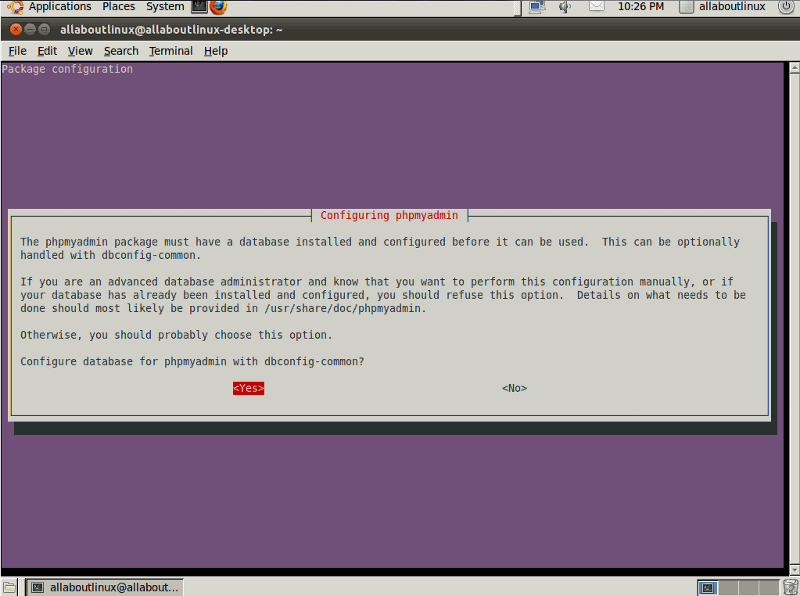
Then you have to type the MySQL root password so the PhpMyAdmin can access the MySQL.
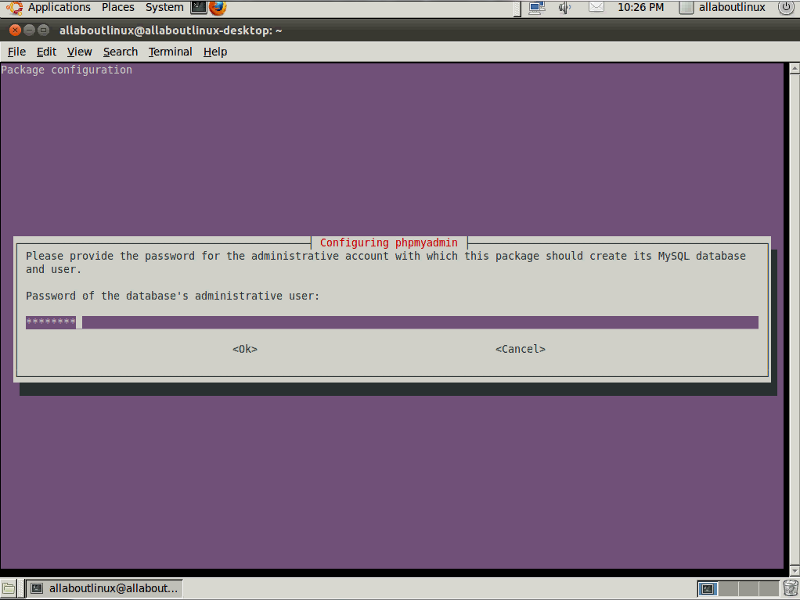
And for the final step you have to enter a password for the PhpMyAdmin and retype it when the confirmation screen appears.
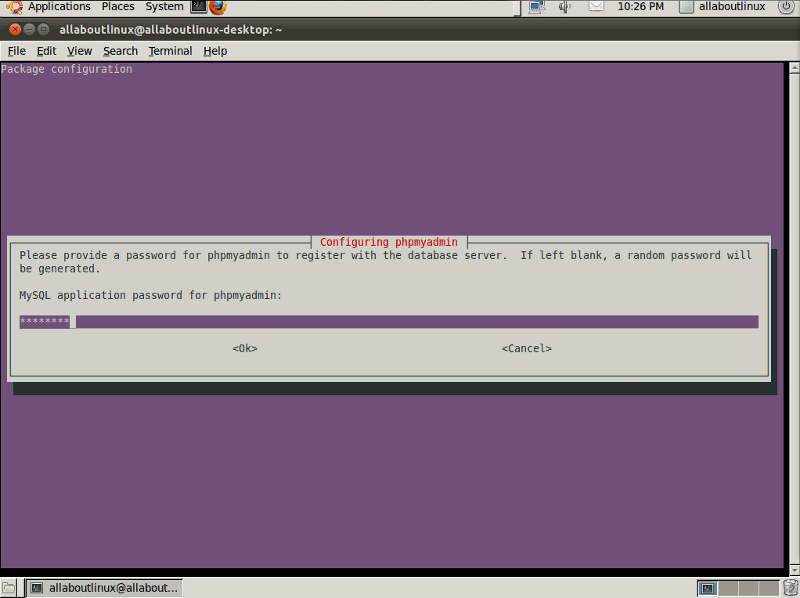
Congratulation the PhpMyAdmin is now installed into your system and you can access it by pointing your web browser at http://localhost/phpmyadmin/
For user name use “root” and for password use the one you have chosen.
How to install WordPress 3.3 on Ubuntu Part 4:
Download and extract wordpress
Now that our system is ready to host a cms like WordPress we can go to WordPress official site and download WordPress. There are more than one packages that you can download. In this tutorial I use the one with the ending tar.gz. When you download this with firefox you can find that file in your local folders /home/(your_account_name)/Downloads/
Ok now we have to copy and extract that file in /var/www/ folder. This folder is the default apache folder. To do that open a terminal and type:
cd /home/(your_account_name)/Downloads/
You should see the downloaded wordpress package in this folder if you type:
ls
Now we have to copy that file in the apache default folder. So type:
sudo cp (the name of wordpress package including the ending tar.gz) /var/www
If all was ok you can now find this file also in /var/www/ directory.
Let’s check it out. Type:
cd /var/www/
ls
you should be able to see the WordPress package and also another file index.html.
Ok now we will extract this file here by typing:
sudo tar -xvf (the name of wordpress package including the ending tar.gz)
Great, now you have a directory inside the /var/www/ with the name “wordpress”
Note!
if you want your wordpress site to be the default site of your server and appear under http://localhost you should follow the next steps.
All you have to do is to delete the index.html from /var/www/
sudo rm /var/www/index.html
And copy everything from /var/www/wordpress into /var/www
cd /var/www/wordpress/
sudo cp -r * /var/www
sudo /etc/init.d/apache2 restart
How to install WordPress 3.3 on Ubuntu Part 5:
Create database and install WordPress
Now everything is ok and we can start installing WordPress.
Open a browser and navigate to “http://localhost/wordpress“, you can now see the first page of wordpress installation. Before we continue we have to create a database so WordPress can save your site contents. To do that, open a new browser and navigate to “http://localhost/phpmyadmin“. You should now be able to see PhpMyAdmin login page. For username enter “root” and for password enter (the password you selected when we install PhpMyAdmin)
Ok now we are ready to create a new empty database:
Click on “Databases” and then under the “Create new Database” type a name for the database and click Create. you should get a message telling you that database has been created.
Go back to wordpress installation browser and click on “Create a Configuration File” and then click on “Let’s Go”
Now you should enter the information that wordpress needs in order to connect with MySQL.
Database Name: (the name you enter when you create the database with PhpMyAdmin)
User Name: “root”
Password: (the password you enter for MySQL root user when you were installing lamp)
Database Host: “localhost”
Leave everything else as it is and click on “Submit”
For the next step you need to enter your website name, the administrator username and password(you will need that in order to connect to WordPress’s control panel) and your email and the click “Install WordPress”.
Congratulations now you have your own WordPress site on your own local Server
Here is a Video tutorial on how to install WordPress on ubuntu
Here is a Video tutorial on how to install WordPress on ubuntu
Video: watch on YouTube ↗