Connect your Cisco Switch / Router on Ubuntu
Requirements for Configure a Cisco device from Console port:
A Host machine with your preferred O.S. In this case I’m using an Ubuntu 12.04 LTS.
A serial port in your computer motherboard or a USB to RS232(Serial) Converter.
A text based terminal emulation (i use minicom in this example)
Its also useful to install a TFTP server on your machine if you want to copy file from or to your Cisco switch / Router. I choose to use the tftpd-hpa
Check for active Serial ports on Linux:
Before we proceed we need to check all the available Serial ports on your machine and write down the port name because we will need it for configuring minicom. Open a terminal and type :
dmesg |grep tty
output:

In my case i have a pl2303 USB to Serial Converter and the name of this device is “ttyUSB0”

Install minicom
open a terminal and type:
sudo apt-get update
sudo apt-get install minicom
Now lets configure the minicom.
sudo minicom -s
A menu like the following should appear:
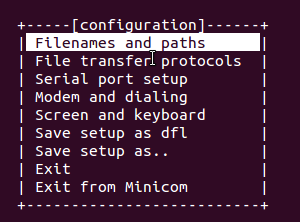
You can Navigate using the arrow key and selecting with “Return/Enter” key. Go to Serial port Setup and a menu like the following will come up:
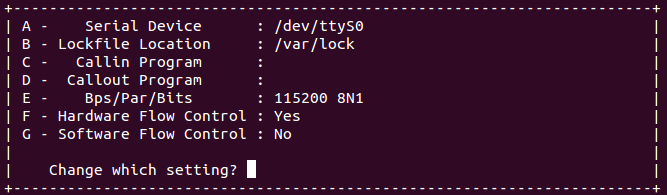
Now we need to make 2 changes here:
1. The name of the serial device. To do so type “A” and change the device from “/dev/ttyS0” to “/dev/ttyUSB0” Where “ttyUSB0” is the name of your device reported from command “dmesg |grep tty” that you executed before
2. The Bps/Par/Bits. To do so type “E” and the following menu will come up
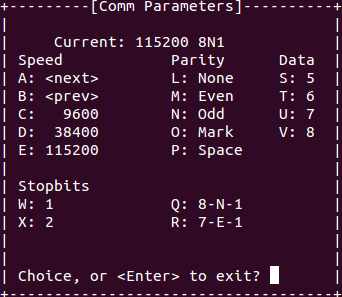
in our case we need the standard 9600 so type “C” and press enter to continue. Now your configuration should look like this:
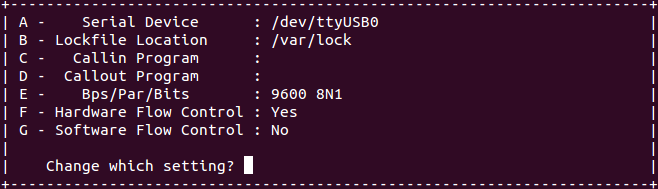
Press enter once again to exit from this menu and then select “Save setup as dfl” and after that select “exit”
And now you can configure your Cisco Switch or your Cisco Router from your Linux machine

Installing TFTP server
This step is not mandatory and since most of you are now excited from accessing your Cisco device probably you don’t even read these lines ;). But believe me in some point you will come back to read the rest because with a TFTP Server you will be able to copy files from Cisco Switch / Router to your computer. So lets setup the TFTP Server:
sudo apt-get install tftpd-hpa
Configure TFTPD
edit the configuratoin file with your favorite editor:
sudo nano /etc/default/tftpd-hpa
and make it look like the following:
TFTP_USERNAME=”tftp”
TFTP_DIRECTORY=”/tftp”
TFTP_ADDRESS=”0.0.0.0:69″
TFTP_OPTIONS= “–secure –create -v –ipv4”
Note!! The last line of this file contains “double dash” before secure, create, ipv4.
You can download the file from here:
Lets create the Directory for our TFTPand give the appropriate permissions :
sudo mkdir /tftp
sudo chown -R nobody:nogroup /tftp
sudo chmod 777 /tftp
now lets restart the tft Server:
/etc/init.d/tftpd-hpa restart
And Check your current ip by typing:
ifconfig
This is also the IP of your TFTP server
Copy Configuration files from Cisco to TFTP
Now Go back to your minicom session and type the following:
to enter the enable mode:
enable
type the enable password if need it and then check the flash contents by typing :
dir flash:/
Now lets copy the config.text to TFTP but before that lets check that your switch can communicate with your computer. In order to do that you must have a network cable connected from your computer to your Cisco Switch /Router. and also the port that is connecting your computer to the switch must belong to a vlan that has an ip address in the range of your computer’s ip. so lets ping your computer from the Cisco:
In my case my Computer has the IP 192.168.0.202 so the command will be:
ping 192.168.0.202
the output should look like the following:
Type escape sequence to abort.
Sending 5, 100-byte ICMP Echos to 192.168.0.202, timeout is 2 seconds:
!!!!!
Success rate is 100 percent (5/5), round-trip min/avg/max = 1/3/10 ms
Now you are ready to copy files from Cisco To TFTP
copy flash:/config.text tftp:/
Address or name of remote host []? 192.168.0.202
Destination filename [config.text]?
!!
1773 bytes copied in 0.076 secs (23329 bytes/sec)
Now the config.text should be in your local folder /tftp
Have Fun.
A video Tutorial is coming soon