Install Ubuntu 15.04 in VMware the easy way
Go to official website of Ubuntu and download the dvd http://www.ubuntu.com/download/desktop
Then if you don’t have already installed VMware go to the official site and download it: https://my.vmware.com/web/vmware/downloads
NOTE!!! VMware workstation Player is free for home use but not for commercial use!!! Please check the EULA of VMware for more information!
Now we can start the installation:
Open VMware workstation player and click on “Create a New Virtual Machine”

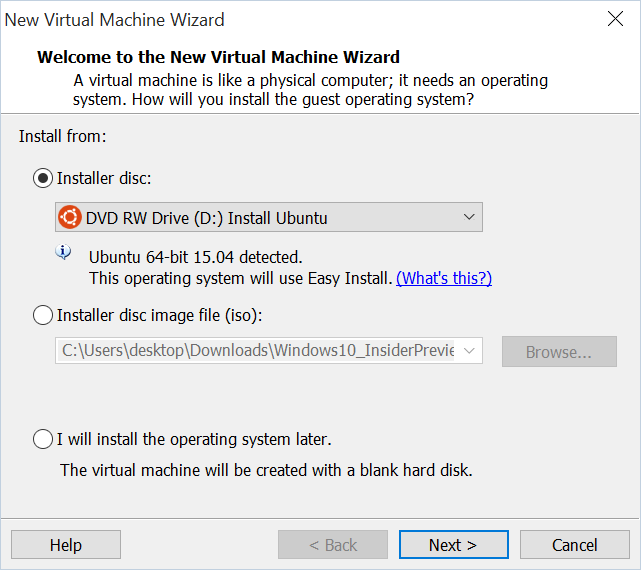
Chose the installation media. if you have burned Ubuntu in a DVD you can insert that to your DVD drive and choose the first option or if you have it as an “iso” file then choose the second option and locate the iso file.

Now create a user by providing the full name, the user name and the password,

choose a name for your virtual machine and the location where the machine’s files are going to be stored. you can also proceed with the default values.

Specify who much disk space you want to provide to your virtual machine

You can go to advanced settings by clicking the “Customize Hardware” button or just click “Finish” to start the installation.


At that point you might get a message like the following, just click ok to let Vmware to change the time out values of keyboard hook.

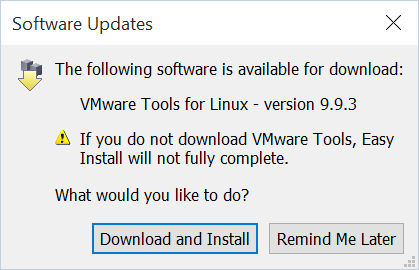
Then another windows will come up suggesting to install VMware Tools. Installation will do that automatically once the installation is finished so for now just click “Remind Me Later”.
The installation will start copying files, just relax for now and wait until it is finished.
After that the machine will reboot and you will get to the “Log in” screen.
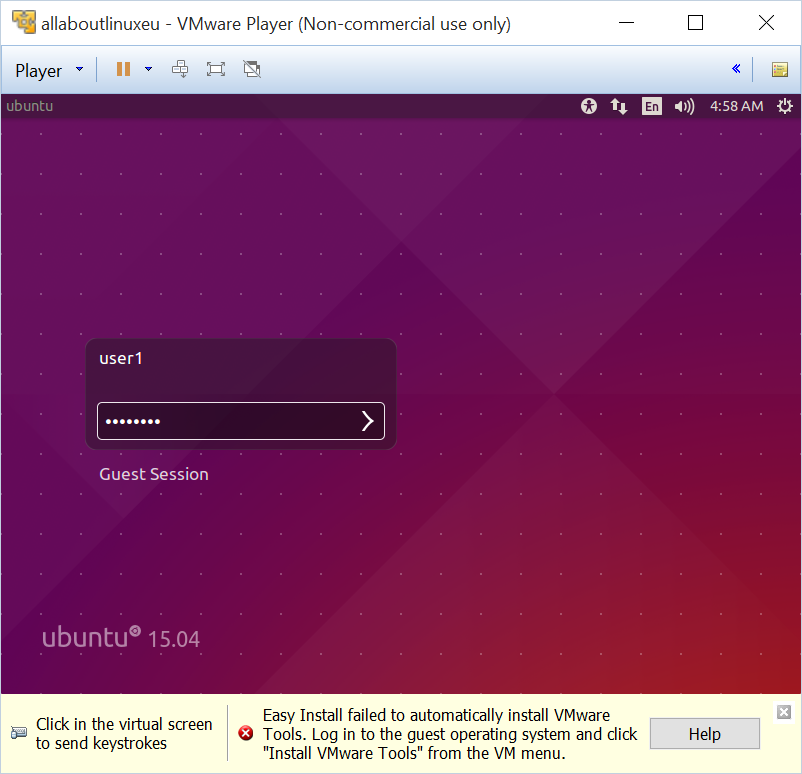
type your password and hit enter.
Enjoy your new Ubuntu installation.